What is DNS Firewall?
A DNS Firewall is a security service that sits between your device and the internet's DNS system. Every time your device tries to resolve a domain name (like example.com), the request passes through our filtering infrastructure first.
Think of it as a security checkpoint for every website you visit. Malicious domains, phishing sites, malware distribution servers, and trackers are blocked before your device ever connects to them.
Malware Blocking
Prevents connections to known malware distribution and C2 servers.
Phishing Protection
Blocks fake websites designed to steal your credentials.
Ad & Tracker Blocking
Stops invasive trackers and ads at the DNS level, system-wide.
Content Filtering
Enforce safe browsing with category-based content blocking.
How Does It Work?
RavenDNS operates on a simple yet powerful principle. Here's the journey of a DNS request through our system:
You type a URL or open an app
Your device needs to resolve the domain name to an IP address. This is called a DNS query.
Query arrives at RavenDNS
Instead of going to your ISP's default DNS, the query is sent to RavenDNS's secure DNS infrastructure for minimal latency.
Real-time threat analysis
The domain is checked against your active DNS profile, custom allow/block lists, and our continuously updated threat intelligence feeds.
Allow or Block
If the domain is safe, we resolve it instantly. If it's malicious or blocked by your profile, we return a blocked response — the connection never happens.
Getting Started
Getting protected with RavenDNS takes just a few minutes. Follow these steps:
1. Create an Account
Register for free and choose a plan that fits your needs.
2. Configure Profile
Set up your filtering rules, custom lists, and preferences.
3. Point Your Device
Change your DNS settings or use our desktop client.
Setup Methods
You can use RavenDNS in multiple ways depending on your needs:
Desktop Client Application
The easiest way to get started. Our native desktop application handles DNS configuration automatically.
Steps
- Download and install the client for macOS or Windows.
- Log in with your RavenDNS account.
- Select your DNS profile from the dropdown.
- Click Activate — your DNS is now protected.
Manual DNS Configuration
Point your device or router directly to our DNS server. Works on any platform.
Your DNS Address
46.224.214.106
Windows
- Settings → Network & Internet
- Click Properties
- Edit DNS server assignment
- Select Manual, IPv4
- Enter
46.224.214.106
macOS
- System Settings → Network
- Click Details
- Go to DNS tab
- Add
46.224.214.106
Router
Configure DNS in your router's admin panel (WAN/DHCP settings) for network-wide protection on every device.
DNS-over-HTTPS (DoH)
Encrypt your DNS queries using DoH. Supported natively by Windows 11, Chrome, Firefox, and Edge.
Your DoH Endpoint
https://dns.securelizard.com/dns-query
Windows 11
- Settings → Network & Internet
- Click your active connection
- DNS → Edit
- Select Manual
- Enable IPv4, enter DNS IP
- Set DNS over HTTPS to On
- Paste the DoH endpoint
Chrome / Edge
- Settings → Privacy & Security
- Enable Use secure DNS
- Select Custom Provider
- Paste the DoH endpoint
Firefox
- Settings → Privacy & Security
- Scroll to DNS over HTTPS
- Select Max Protection
- Choose Custom, paste endpoint
Why DoH?
DNS-over-HTTPS encrypts your DNS queries, preventing ISPs and attackers from snooping on your browsing activity.
DNS Profiles & Custom Lists
Profiles let you define exactly what gets blocked and what gets allowed. You can have multiple profiles and switch between them.
DNS Profiles
A profile is a collection of filtering rules. Each profile has its own allow/block lists and threat categories.
- Create multiple profiles
- Switch profiles from dashboard or client
- Assign different profiles per device
Custom Lists
Define your own allow and block lists with specific domains. Override global rules for individual sites.
- Block specific domains
- Whitelist trusted domains
- Bulk import domain lists
Desktop Client Application
Our native desktop client provides the simplest and most seamless way to stay protected. Available for both macOS and Windows.
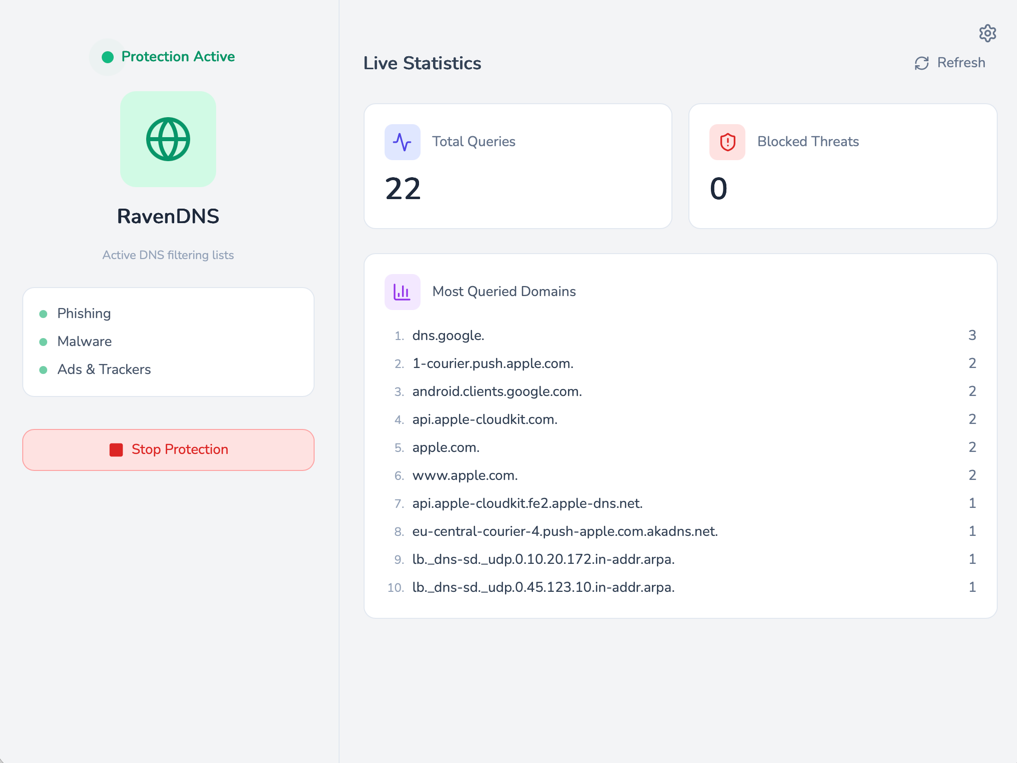
One-Click Activation
Enable or disable protection with a single click.
System Tray Integration
Runs quietly in the background. Control from system tray.
Auto-Reconnect
Restores protection after interruption or reboot.
Profile Switching
Change DNS profile on-the-fly without opening browser.
Query Log & Monitoring
Monitor your DNS activity in real-time from the dashboard. See what's being blocked, what's being allowed, and identify potential threats.
Real-Time Log
View every DNS query with timestamp, domain, and action taken.
Statistics
Track blocked vs. allowed queries and threat trends.
Threat Alerts
Get notified when critical threats are detected.
Ready to Get Protected?
Create your free account and start using RavenDNS in under a minute.
Register Now Back to Home